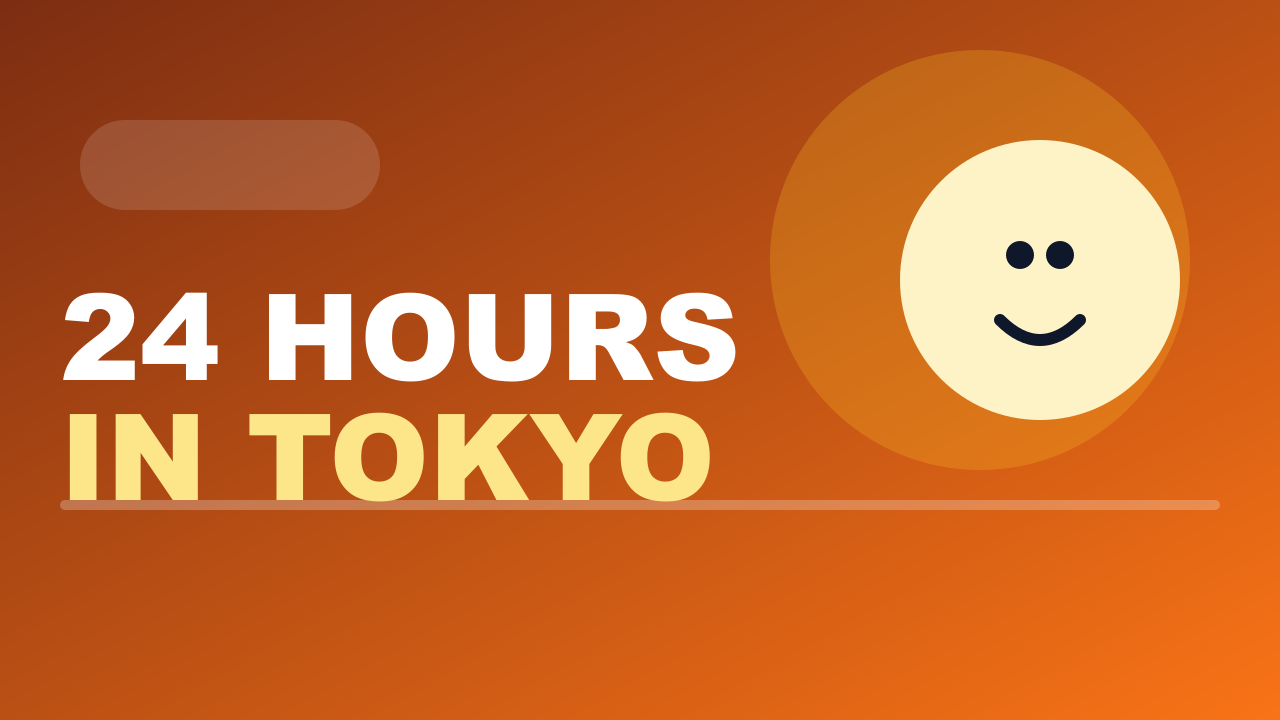
Most creators know their thumbnails could be better. The problem isn't motivation — it's time and tools. Opening Photoshop for a 1280 × 720 image feels like overkill. Canva works but has a learning curve. And hiring a designer for every video isn't realistic.
A dedicated YouTube thumbnail maker solves this. You get the right canvas size, the right export settings, and design tools built specifically for thumbnails — without the bloat of a full design suite.
What Makes a Good YouTube Thumbnail?
Before touching any tool, it helps to understand what you're designing toward. High-performing thumbnails share four characteristics:
Contrast. Your thumbnail competes with dozens of others in a grid. Bold, high-contrast colors — especially against YouTube's white background — make yours stand out. Avoid muted tones and low-contrast combinations like yellow on white or dark blue on black.
Readable text. If you use text, it needs to be legible at 168 × 94 pixels (the sidebar size). That means large fonts, short phrases (3–5 words), and strong contrast between the text and background.
A clear focal point. The viewer's eye needs somewhere to land immediately. A face with an expressive emotion, a product, or a dramatic visual all work. Busy thumbnails with no clear subject get skipped.
Color psychology. Red and orange create urgency and excitement. Blue signals trust and authority. Yellow grabs attention. These aren't rigid rules, but they're worth considering when choosing your palette.
How to Make a YouTube Thumbnail in 3 Steps
Step 1: Open the canvas editor
Go to the Workbench — a full canvas editor set to 1280 × 720 by default. No setup required. You'll see a blank canvas ready for your thumbnail design.
Step 2: Add your background and subject
Choose from six built-in templates to start with a proven layout, or build from scratch. Add your background — a solid color, gradient, or uploaded photo. Then add your subject: upload a photo of yourself or a relevant image, position it, and adjust the size.
For a faster workflow, use the screenshot beautifier. Upload a screenshot or photo, and it automatically applies a gradient or blurred background behind your subject. This is the quickest path from raw image to polished thumbnail.
Step 3: Add text and export
Add your text overlay — keep it to 3–5 words, use a bold font, and make sure it contrasts with the background. When you're happy with the design, export at 1280 × 720 as JPG or PNG. The file is ready to upload directly to YouTube Studio.
YouTube Thumbnail Templates — Quick Start Options
Starting from a blank canvas is slower than starting from a proven layout. The Workbench includes six templates covering the most common thumbnail styles:
Bold text + face — The classic YouTube format. Large text on one side, expressive face on the other. Works across almost every niche.
Before / After split — Two panels showing a transformation. High-performing for tutorials, makeovers, and improvement content.
Numbered list — A large number (like "7" or "10") with a short descriptor. Works well for listicle and tips content.
Product showcase — Clean background with a product or screenshot as the hero. Common in tech, review, and unboxing content.
Reaction / emotion — Full-face close-up with minimal text. Relies on the expression to drive curiosity.
Minimal text-only — Bold typography on a gradient background. Works when the words themselves are compelling enough.
Pick the template closest to your concept, swap in your own images and text, and you're done.
Screenshot Thumbnails — The Tech Creator's Secret
If you make tutorials, software reviews, or any screen-based content, screenshot thumbnails are one of the fastest and most effective formats.
The approach: take a screenshot of the most interesting moment in your video — a dramatic result, a key interface, a before/after comparison — and turn it into a thumbnail. The screenshot itself is the content. Viewers immediately understand what the video covers.
The challenge is that raw screenshots look flat and unpolished as thumbnails. The fix is adding a background that frames the screenshot and makes it pop.
The screenshot beautifier does this automatically. Upload your screenshot, choose a gradient or blurred background style, and it generates a thumbnail-ready image with the screenshot centered and framed. The result looks like it took 20 minutes to design. It takes about 20 seconds.
Check Your Thumbnail Before Publishing
Designing at full size on a large monitor is misleading. A thumbnail that looks great at 1280 × 720 can fall apart at the sizes YouTube actually displays it.
Two tools help here:
Thumbnail Tester — Upload your finished thumbnail and preview it exactly as it would appear on YouTube: desktop home feed, search results, mobile, and sidebar. You'll immediately see if text is too small, if the focal point gets lost, or if the colors wash out at small sizes.
CTR Score Analyzer — Scores your thumbnail's click potential based on contrast, text readability, focal point clarity, and color impact. It gives you a score and specific suggestions for improvement before you publish.
Running both checks takes two minutes and can meaningfully improve your click-through rate.
Frequently Asked Questions
What is the best free YouTube thumbnail maker? The best free option depends on your workflow. For full design control, the Workbench gives you a canvas editor with templates, text tools, and image layers at 1280 × 720. For quick screenshot-based thumbnails, the screenshot beautifier is faster. Both are free with no sign-up required.
What size should I set my thumbnail canvas to? Always design at 1280 × 720 pixels. This is YouTube's recommended thumbnail size at a 16:9 aspect ratio. Designing at a smaller size and scaling up introduces blurriness. The Workbench defaults to this size automatically.
Can I make a YouTube thumbnail on my phone? Yes. All the tools on this site work in mobile browsers. The Workbench and screenshot beautifier are both touch-friendly. For quick edits on the go, the screenshot beautifier is the fastest option.
How do I add text to a YouTube thumbnail? Open the Workbench, upload your background image, and use the text tool to add your overlay. Choose a bold font, set the size large enough to read at small thumbnail sizes, and pick a color that contrasts with the background. Limit text to 3–5 words for maximum readability.
Do YouTube thumbnails affect views? Yes, significantly. Thumbnails are one of the primary factors in click-through rate (CTR), which is a key signal YouTube uses to decide how widely to distribute a video. A thumbnail that increases CTR from 3% to 6% can double the number of views a video receives from the same number of impressions.